Users can now automatically create sales quotes as part of the B&M claim generation process. When enabled, a linked sale in "quote" status is created at the same time as the claim. This reduces manual steps, keeps the entire process within a single workflow, and supports smoother payment handling.
Public Release Notes - Manage 11.11.0
About this release
March 3, 2026, Manage 11.11.0
Manage 11.11.0 introduces enhanced localization, smarter finance workflows, improved documentation automation, stronger scheduling controls, and expanded API capabilities, along with usability improvements to streamline daily clinic operations.
Key highlights include:
- Report Localization in Company Settings (ALL)
Standard report labels can now be renamed or translated directly in Company Settings, enabling consistent terminology and regional customization across reports.
- BPAY Payment Support (AU)
Manage now supports BPAY as a payment method for Australian clinics, including company‑level biller code storage, automatic CRN generation per patient, and printing of BPAY details on quotes and invoices. - Automatic B&M Quote Generation (AU)
For HSP Battery & Maintenance sales, quotes can now be created automatically during B&M claim generation, supporting workflows where payments occur before invoices exist and later need reconciliation in external accounting systems. - Online Booking Multi‑Language Support (ALL)
Online Booking now supports multiple languages, automatically adapting to the patient’s browser language. Localization is available for instructions, consent text, and other key content, allowing clinics to adapt language for regional requirements while ensuring legal and consent information remains consistent.
- Bulk Payments via Public API (ALL)
A new Bulk Payments API now allows up to 200 payments to be created in a single request, enabling Manage to reflect Accounts Receivable balances reconciled in external systems and improving efficiency for high‑volume payment processing.
1. WHAT'S NEW
COMPANY SETTINGS
[ALL] Standard Reports Localization (Content Only)
Company settings > Languages > [selected language] > Translations tab
Report localization is now available directly in Company settings, enabling full control over how report fields are displayed across different languages and regions. The following options are supported:
- Renaming fields to align with company-specific terminology or corporate conventions.
- Translating fields into different languages based on regional requirements.
HOW IT WORKS
- Modifiable report labels are managed in Company settings > Languages > [Selected Language] > Translations tab.
- Entering the prefix report. in the search field displays all report-related entries available for customization.
- The following search categories are supported:
report.param. – Controls how report parameters are displayed (e.g., parameter labels visible to users).
report.general. – Used for general report labels shared across multiple reports (e.g., invoice date, invoice number).
report.<reportname>. – Used for labels specific to a particular report. - After selecting an entry, the corresponding field can be customized.

To ensure consistent terminology across reports, some field names may be slightly adjusted. For example, if a field was previously labeled “Patient name” in one report and “Patient” in others, all reports will now consistently use “Patient.”
PATIENTS
[AU] BPAY Payment Support
Environment settings > Finance settings > BPAY
Environment settings > Finance settings > Sale related > Payment/refund methods
Patients > Patient sale
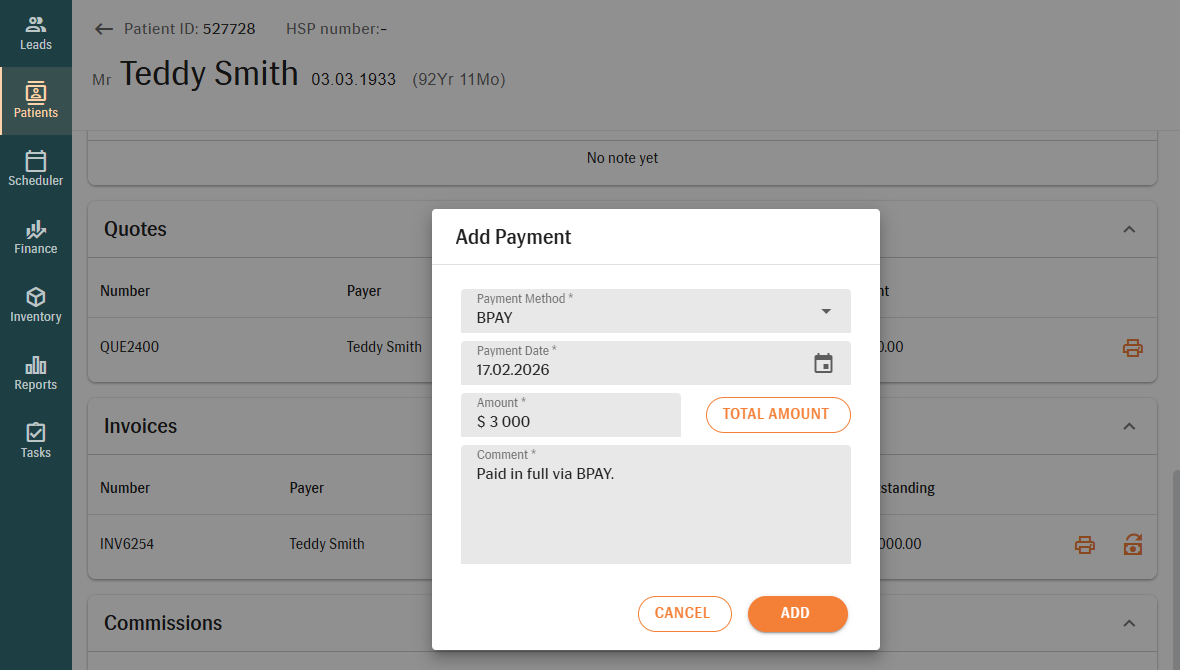
BPAY is now available in Manage as a payment method for Australian users. It enables private patients to pay invoices securely through their bank using a unique Customer Reference Number (CRN).
BPAY can be used to record:
- Payments and refunds for Patient Sales and Fast Track Sales.
- Deposits for Patient Sales only.
REQUIRED PERMISSIONS
- EditFinanceSettings
- ViewBPaySetting
- EditBPaySetting
By default, Administrator roles with the permission to edit Finance settings are granted BPAY permissions.
HOW IT WORKS
BPAY becomes available only after it has been enabled in Finance settings. Once activated, it can be used exclusively for private payers and is not available for funders or insurance companies.

In Fast Track Sales, BPAY requires a valid patient with a generated CRN. If no CRN is available, the payment cannot be completed.
1. Setup and Payment Availability
BPAY is enabled via Environment settings > Finance settings > BPAY.
On the BPAY configuration page:
- Enable BPAY payments
- Enter your BPAY Biller Code (numeric company identifier)
- Define CRN length (2–20 digits)
Once BPAY payments are enabled, it is necessary to add a payment method with the type "BPay" that can then be selected in a Patient Sale or a Fast Track Sale.
- It is possible to do so via Finance settings > Sale related > Payment/refund method.NOTE:Only one BPAY payment method may be active at any given time. An attempt to add another active BPAY payment will trigger a warning.If BPAY is set to inactive:
- It cannot be selected for new payments/deposits/refunds.
- Existing records remain visible for audit.
- It cannot be selected for new payments/deposits/refunds.
In a Patient/Fast Track Sale, the configured payment/deposit/refund method can be selected by using the respective controls:
2. CRN Generation
When BPAY is enabled:
- A unique Customer Reference Number (CRN) is automatically generated per patient and will be used on all relevant BPAY financial documents.
- The CRN is based on the Patient ID in Manage and includes a final check digit calculated using BPAY’s official validation rules. If required, leading zeros are added to meet the configured CRN length.
NOTE:
- CRNs are unique per patient within your organization, cannot be edited, and are not regenerated dynamically.
- If BPAY is disabled, new CRNs are not created.
3. Document Templates
New BPAY-enabled templates are available for invoices, quotes, and fast track invoices. These templates can be selected when printing the corresponding sale documents.
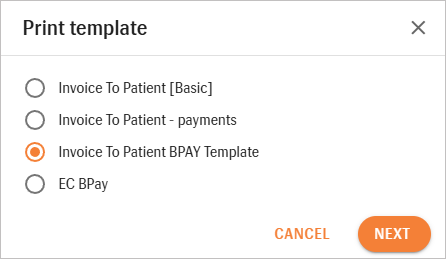
These templates are:
These templates are:
- Disabled by default
- Available in Printing Templates (accessible from Environment settings > Print settings)
- Identical to standard templates, with an added BPAY section
The BPAY section at the bottom of a print page includes:
- BPAY logo
- Biller Code
- CRN (Ref)
- Standard BPAY payment instructions
If no CRN exists, the BPAY section will not contain valid payment details.
4. API & Integration
BPAY support is available in:
- Public API – CRN returned in payment data
- Bulk Payment API – Supports automated reconciliation of multiple invoices
FINANCE/PATIENTS
[AU] B&M Invoicing: Automatic Quote Generation
Environment settings > HSP Configuration > General
Finance > HSP > Battery & Maintenance
Patients > Patient sale
REQUIRED PERMISSIONS
- View HSP Configuration
- Edit HSP Configuration
HOW IT WORKS
- To be able to automatically create quotes during B&M claim generation, enable the setting “Enable B&M Quote Generation” in Environment settings > HSP configuration > General. The setting is disabled by default.
- Navigate to Finance > HSP > Battery & Maintenance page.
- Select the patient(s) and click Generate Claims.
- In the Generate Claims dialog, provide relevant details. Complete the claim generation as usual.
- Open the created Sale from the Patient Sale page. The generated Quote is available in the Quotes section of the Sale.
ONLINE BOOKING
[ALL] Online Booking Multi-Language Support
Online booking
Environment settings > Online booking > General
Environment settings > Online booking > General
Online Booking is now available in multiple languages, enabling patients to complete bookings in their preferred language and helping reduce drop-offs caused by language barriers. This enhancement supports clearer communication and a more accessible booking experience.
HOW IT WORKS
- Online Booking automatically displays in the patient’s browser language if it is supported by your clinic. Patients can manually switch between supported languages using the language selector.
- If the patient’s browser language is not supported, the system uses a default language that you can define in your clinic’s Online Booking settings in Manage (Environment settings > Online Booking > General).
The default language acts as a backup. If the system cannot match the patient’s browser language to one of your supported languages, Online Booking will load in the language you have selected.
This setting does not change the patient’s browser language; it only determines which language Online Booking displays.
The selected language applies throughout the entire booking flow.
2. IMPROVEMENTS
PATIENTS
[AU] Notes on Invoice, Quote and Credit Note Printouts
Patients > Patient sale
As of this release, notes entered during a sale are automatically included on generated invoices, quotes, and credit notes. This ensures that required reference information is consistently displayed on financial documents, enhances billing accuracy, reduces the need for manual adjustments, and supports compliance with external payer requirements.
HOW IT WORKS
During a sale, additional reference information can be entered in the Notes section.
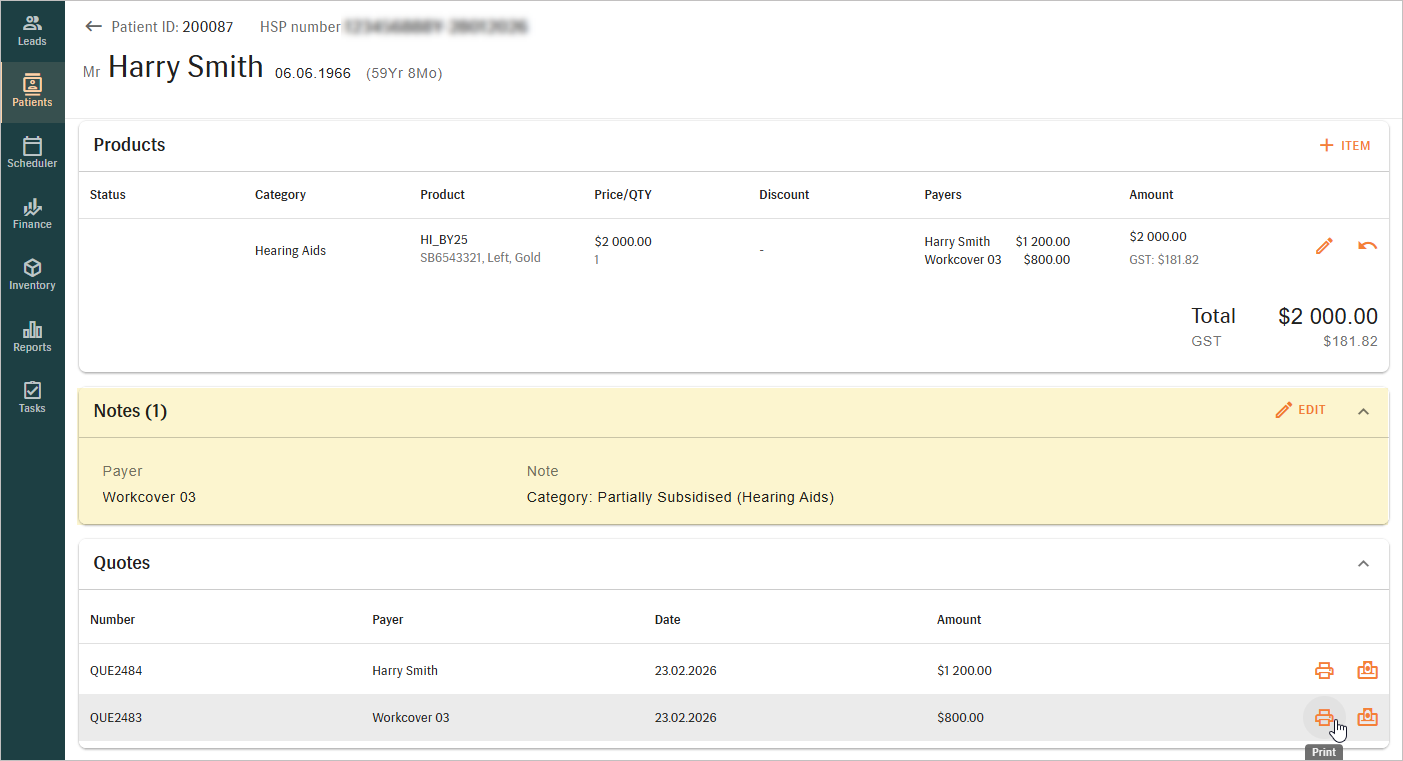
These notes are linked to the relevant payer and automatically transferred to the corresponding financial document template when the document is generated.
These notes are linked to the relevant payer and automatically transferred to the corresponding financial document template when the document is generated.
- Credit notes
- Invoices (to patients and third-party payers)
- Quotes (to patients and third-party payers)
[ALL] AI GP Referral Letters: Automatically Included Audiograms
Patients > Documents
AI-generated GP referral letters now automatically include the patient’s most recent audiogram. This improvement ensures referral letters are more complete, standardized, and clinically informative for GPs.
This GP Referral Letters update includes:
- Inline audiogram image
- Structured thresholds table
- Brief clinical interpretation (type, degree of hearing loss, reliability)
- Clear notice when no recent audiogram is available
NOTE:
- Audiograms and clinical information are taken from the patient’s Appointment Report for the most recent visit.
- To be included in the GP letter, clinical data must be completed within ±1 day of the appointment and linked to that visit. Data outside this timeframe or not connected to the appointment will not be included.
[ALL] AI-Generated IMP Document Update
Patients > Documents
During AI-powered generation of the Individual Management Plan, details such as Patient Name, Date of Birth, Audiologist Name, and Date of Visit are now automatically populated in the document. Audiologists no longer need to state this information during recordings, as these fields are filled directly from Manage. This improvement makes documentation faster, simpler, and more consistent.
KEY BENEFITS:
- Time saved during appointments
- Reduced transcription errors
- Improved consistency across patient records
- Greater focus on patient care
SCHEDULER
[ALL] Mandatory Appointment Status
Environment settings > Scheduler settings > General
Scheduler
Users now have an option to require a status for every appointment in order to improve data consistency and prevent errors in reminders, confirmations, reporting, and automated workflows.
HOW IT WORKS
The "Appointment status required" setting is turned off by default but can be enabled at any time. When activated, the setting affects appointments created in Manage, through Online Booking, and via Public API. It does not apply to appointments created through external integrations with their own booking rules, such as NHS eRS.
When OFF
- Appointments can be created or edited without a status.
- Online bookings continue to function as usual.
- Appointments created via the Public API continue to follow existing behavior.
When ON
- Both a default status and an online booking default status must be defined.
- A status is required for all newly created or updated appointments.
- Appointments cannot be saved without a status, and users are prompted to complete the required field.
- Online bookings will not be completed if the configured default status is missing or inactive.
- Appointments created via the Public API without a status are rejected.
- Existing appointments are only affected if they are edited.
For customers using NHS integration, the eRS appointment booking process remains unchanged. Appointments are always created with the status Booked, regardless of the configuration in Manage, as required by NHS guidelines.
INVENTORY
[ALL] Editable Order Fields in Draft and Submitted Statuses
Inventory > Order management
Order Management has been extended to support controlled editing of selected order header fields after an order has been created. Key reference details can now be updated while the order remains in "Draft" or "Submitted" status.
This capability applies to orders created directly in Order Management as well as to orders generated through the Patient Sale > Purchase Order flow.
By allowing updates at later stages of the order lifecycle, this improvement enhances operational flexibility, strengthens data accuracy and traceability, and reduces the need to recreate orders due to incomplete or incorrect reference information.
HOW IT WORKS
- During initial order creation, all header fields remain editable.
- In Draft and Submitted statuses, selected reference fields – Quote #, External Order #, and Invoice Reference # – remain editable.
- Orders in "Completed" or "Cancelled" status remain fully read-only.
- If changes are made in "Draft" status and the order is submitted without saving, the updates are saved automatically upon submission.
REPORTS
[ALL] Improved Filtering in Patient and Lead Information Report
Reports > Operations
The "Patient and Lead Information" report now supports filtering by patient record creation date. Users can now generate reports for patients created within a selected period (e.g., last year, this year, last two years), instead of generating the full patient list. The report now includes:
- Patient Date Added column (date the patient record was created)
- Date Added range filter (Start Date – End Date)
3. PUBLIC API
For details, we recommend checking our Swagger API specifications. This resource provides a comprehensive overview of our public API, including endpoints, request parameters, and response formats.
HOW TO USE
Select the version to see the available endpoints and gain a deeper understanding of our API's capabilities.

INVOICING
[AU] GET – Payments: CRN Field Added for BPAY [v2]
The public API for retrieving sale payments has been extended to include the CRNcode field. This field returns the Customer Reference Number (CRN) associated with BPAY payments, enabling external systems to automatically match incoming BPAY transactions with invoices.
For non-BPAY payments or when BPAY is disabled, the CRNcode field is returned as empty to maintain backward compatibility.
Endpoint - v2
GET /api/v2/invoicing/sales/{saleId}/payments – Retrieves a list of payments for a given sale.[ALL] POST – Bulk Payments Creation via Public API [v2]
The Public API now supports the creation of multiple payments within a single request, enabling users to submit bulk deposits or payments to Manage and efficiently handle large volumes of outstanding invoices. Each API call supports up to 200 payments.
- Payments can be created at the invoice, quote, or payer level (depending on configuration) and include key reconciliation details such as payment method, amount, payment date, and optional banking information.
- The response returns an overall status if all payment items are successfully created. If any errors occur, the response provides an individual status for each payment item, detailing which items failed.
This functionality is available globally, excluding payments for US funders. Posting payments for private US payers is supported.
Endpoint - v2
POST /api/v2/invoicing/sales/external/payments/bulk – Creates one or multiple payments/deposits in a single request (bulk).
4. TECHNICAL REQUIREMENTS UPDATE
4.1 Current System Requirements
| Operating systems | Windows 10, Windows 11 |
| Supported browsers | Chrome (latest version), Edge (latest version) |
| Language preferences | English |
| Country layers | UK, AU, US, NZ |
| Bridge version | Bridge BE - 2.5.0 + 2.5.0 |
| Engage version | 1.3.3, 2.0.0 |
| Zapier version | AuditData (4.2.4) |
| Screen resolution | 1920x1200 |
| Internet connection speed | 10Mb/s |
4.2 DWH Schema Changes
4.2.1 Added Tables
NOTE:
The Data Warehouse (DWH) structure is uniform across all country layers. However, for operational convenience, each country layer can only access data relevant to them, with data access being managed at the customer level.
| COUNTRY LAYER | TABLE | COLUMN NAME |
| UK | Fact_UkAutomaticBatteriesProvisionLogs | UkAutomaticBatteriesProvisionLogId (key) EnvironmentID AftercareBatteryAutoSaleId PatientId LocationId HubId PatientName Status Message CreatedBy ChangedBy CreationDate ChangeDate ReferralSaleId Info LoadTime DataLoadTimestamp |
5. SOLVED ISSUES
AUDIT TRAILS
[UK] Technical Labels Displayed Instead of Status Names
Audit trails > Finance tab
- An issue was resolved where sales document status changes were displayed using technical system labels instead of clear, readable status names. Status updates are now shown in a user-friendly format.
DATE PICKER
[ALL] Date Selection Not Possible After Dismissing Year Dropdown
- An issue was resolved where users were unable to select a date after opening the date picker, accessing the year dropdown, and dismissing it without making a selection. After this action, no date could be selected unless the page was refreshed. The date picker behavior has been corrected to ensure users can continue selecting dates as expected, even if the year dropdown is closed without a selection.
PATIENTS
[ALL] Audiograms Deleted in Bridge Still Visible in Manage
Patients > Clinical data
- An issue was resolved where audiograms deleted in Bridge were not automatically removed from Manage. This could lead to confusion and the display of incorrect clinical data, particularly if an audiogram was created under the wrong patient profile. The behavior has been corrected to ensure that when an audiogram is deleted in Bridge, it is automatically removed from Manage, keeping records aligned across systems.
[AU] Missing Invoice Number on Credit Notes
Patients > Patient sale
- An issue was resolved where the original invoice number was not displayed on generated credit notes. Credit notes are legally required to reference the original invoice, and this information is now displayed automatically while the credit note retains its own unique number.
SCHEDULER
[ALL] Recurring Appointment End Date Issue
Scheduler
- An issue was resolved where recurring appointment series could end one day later than the selected “Until date.” When creating a recurring series, the selected “Until date” was processed in a way that could cause a one-day shift in certain time zones, resulting in the series extending beyond the chosen date. The time zone–based end date calculation was corrected to ensure recurring appointments always end on the exact date selected, regardless of creation time.
[ALL] Empty Error Message for Inactive Appointment Resources
Scheduler
An issue was resolved where an empty error notification appeared when setting outcomes on appointments linked to an inactive resource due to a missing error message in the system. The required error message has been added, clearly stating that the resource is invalid or inactive when attempting to modify such appointments.
INVENTORY
[ALL] Repair Services Import Error Due to Category Type Format
Inventory > Product catalog
- An issue was fixed where repair services could not be imported if the "Category Type" value in the import file was incorrectly formatted. This resulted in a misleading error message during import. The error message has been improved to provide clear guidance and help users correct formatting issues in the import file.
[ALL] Repair Order Number Changes After Editing
Inventory > Repair and L&D
An issue was resolved where the Repair Order number changed after saving an existing repair order, even when no edits were made. Upon saving, the system incorrectly assigned a new sequential number instead of retaining the original one. This behavior has been corrected, and the original Repair Order number is now retained when editing and saving an existing record.
TASKS
[ALL] Loading Indicator Not Displayed on Initial Visit to Tasks Page
Tasks
- An issue was resolved where the loading indicator was not displayed on the first navigation to the Tasks page within a session, while it appeared on subsequent visits. The behavior has been corrected to ensure the loading indicator is shown consistently whenever the Tasks page is loading, including the initial visit.